
Open your profile
On the map, open the … menu and tap the profile symbol. This is where you can adapt Rivers & Seas to your boat and your preferences.
Your settings sync between your devices through iCloud, including the details for a Wi-Fi AIS receiver. You do not need to set up the same profile again on your iPhone and iPad.
Know early whether your boat will fit
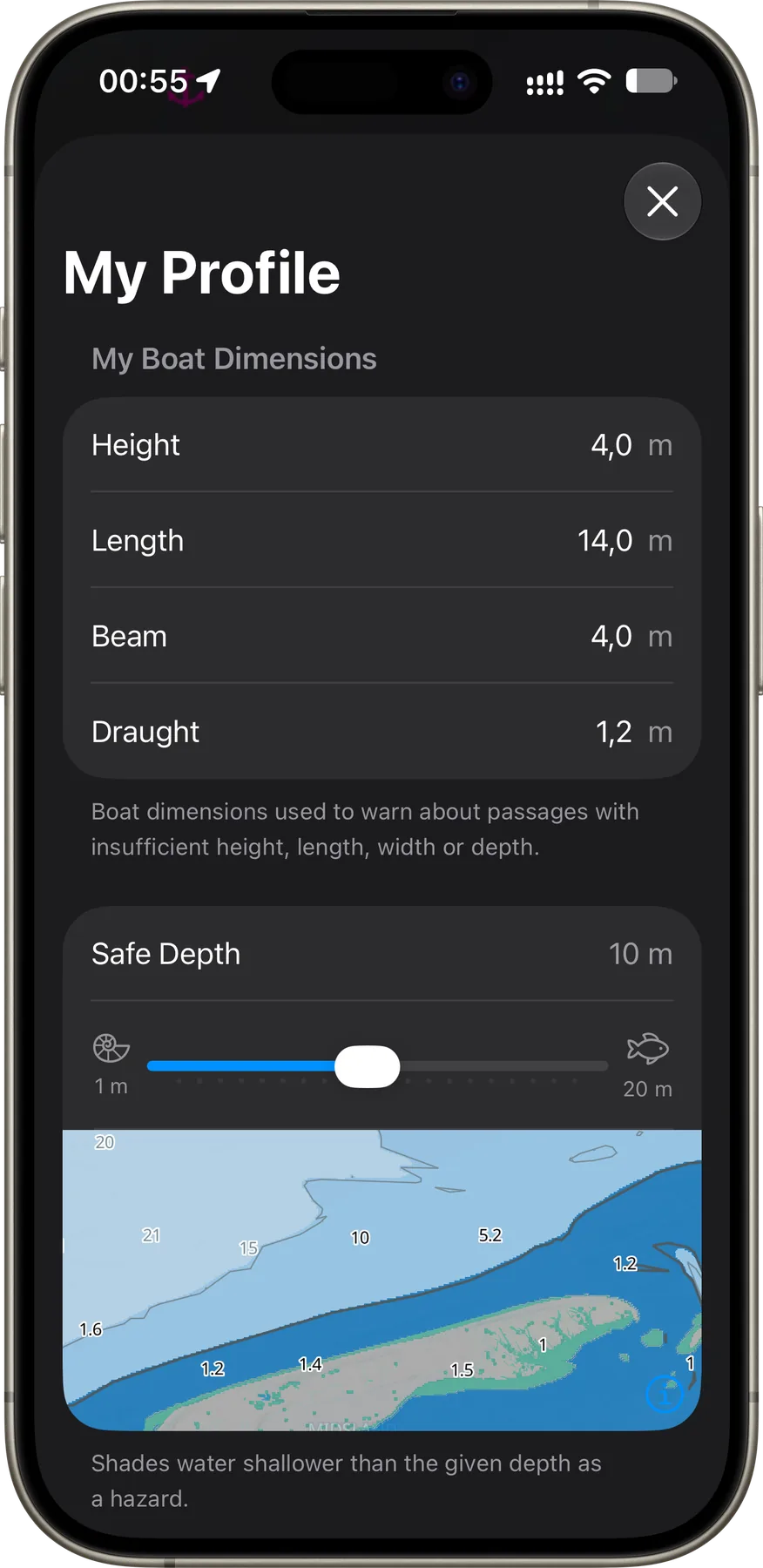
Your boat’s height, length, beam, and draught allow Rivers & Seas to warn you about passages that may be too low, too short, too narrow, or too shallow along your waterway. Enter every dimension you know with confidence.
Until you make a change, air height is set to 4 metres and draught to 1.20 metres. Length and beam start empty.
If your boat is connected through Signal K, Rivers & Seas can use the dimensions it provides automatically. When you change Signal K servers, automatic values follow the new boat. If the new boat does not provide a particular dimension, Rivers & Seas does not carry that value over from the previous boat; the field stays empty or returns to its appropriate default. A field you have edited yourself keeps your value instead. Clear that field completely whenever you want Rivers & Seas to use the automatic value again.
When all dimensions are automatic, the section is headed “Dimensions of [boat name]”. As soon as you edit at least one dimension, it becomes “My Boat Dimensions”.
Spot shallow areas more quickly
Choose a safe depth so that shallower water stands out as a hazard in the Seascape map style. You can select whole metres from 1 to 20; the default is 2 metres.
The small map below the slider previews the change immediately. It uses a fixed example location, not your current position.
This setting changes the map display only. It does not change your boat’s draught or the accuracy of the chart data, and it complements rather than replaces your assessment of the actual conditions.
Know how long a saved Track will take before you set off
For a saved Track, Rivers & Seas shows pure cruising time and additional assumed lock time alongside the distance. The app can learn your usual cruising speed during steady travel, so you do not have to work it out yourself first.
After at least 15 suitable minutes, the profile shows “Cruising Speed (Learned)”. Rivers & Seas continues learning after that: later periods of steady cruising gradually adapt the value to the way you actually travel. Stops, waiting, and manoeuvres do not distort it. If you prefer to calculate with a fixed speed, simply enter your own; that manual value takes priority.
Clear your own value completely to use the learned cruising speed again. Its unit follows your choice under My Preferred Units. Rivers & Seas displays cruising time and lock time separately, for example “2 hr 37 min + 1 hr 20 min”. A lock uses its stored duration, or 30 minutes when none is available. Unpredictable queues, personal stops, and breaks remain outside the estimate.
See speed in the units you already use
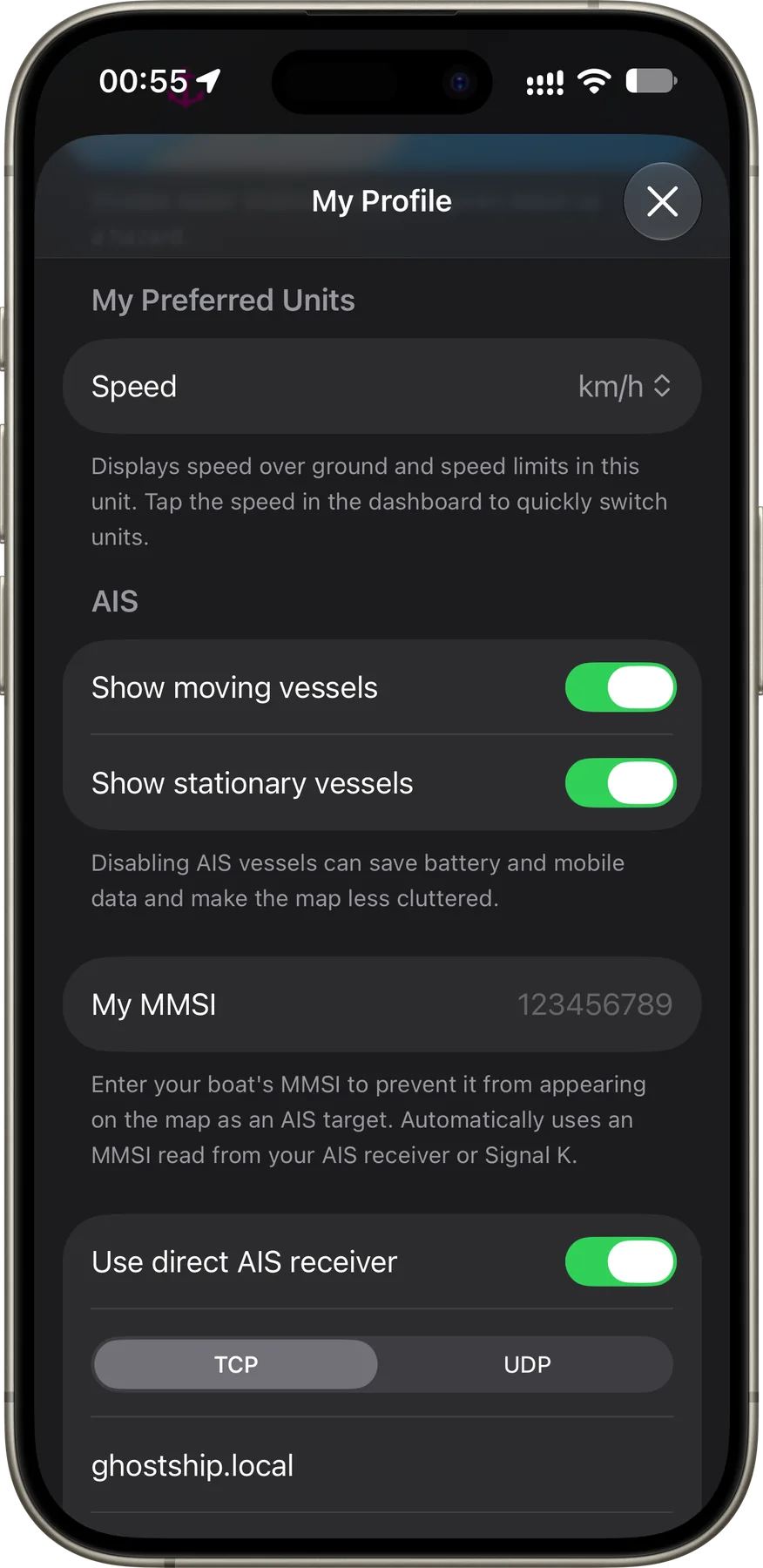
Choose knots or the regional unit, km/h or mph. Rivers & Seas uses your choice for speed over ground and speed limits.
There is a quicker way underway: tap the speed in the dashboard to switch the same setting directly.
Keep the map calm—or keep every AIS vessel in view
Use the two switches to choose separately whether Rivers & Seas shows moving and stationary AIS vessels. Your choice applies to both the map and Traffic Ahead, including its navigation alerts.
A hidden group is no longer considered there. If you switch off both groups, Rivers & Seas stops its AIS-specific data sources. This can save battery and mobile data and gives you the calmest map. Hiding only one group does not necessarily reduce network use; other Signal K functions remain active either way.
Keep your own boat from appearing twice
Your MMSI lets Rivers & Seas recognise your own boat and remove it as a separate AIS target. You can enter it yourself; otherwise the app first uses a value detected from your own AIS receiver and then from Signal K.
An automatically detected value appears in the field with its source and remains editable. A value you enter yourself stays in place when you change Signal K servers. If you use the automatic Signal K MMSI instead, it follows the connected boat. Clear the field completely to return to automatic detection.
An AIS receiver can supply your own MMSI only if it sends information about your own vessel as well as received traffic. Receiving messages from other vessels alone is not enough.
Use the AIS receiver already on board
If your AIS receiver shares its data over the boat’s Wi-Fi, Rivers & Seas can use nearby vessels directly from it. This is especially useful where mobile coverage on the water is unreliable.
Turn on “Use direct AIS receiver”, then choose TCP or UDP and enter the port. With TCP, also enter the receiver’s host name or IP address. Rivers & Seas expects the usual NMEA 0183 AIS data stream.
The configuration syncs through iCloud. The receiver still needs to be reachable from the device on the local boat network before it can connect.
Check boat data and the autopilot connection
When Rivers & Seas knows a Signal K server, the profile shows its connection status, the server, and the boat name when available. This lets you see at a glance whether boat data is reaching the app.
Access permissions appear only after an autopilot has been detected. To control it, approve the Rivers & Seas request in the Signal K server under Security → Access Requests with Read/Write permission.
If something is missing, check Permissions & Features
If your position is missing from the map, an alert does not arrive while the iPhone is locked, Signal K cannot be found, or photos do not appear as expected, check Permissions & Features in the profile first. It shows whether this iPhone or iPad is missing a required permission and lets you request it or open the relevant system setting.
Location puts your boat on the map and enables automatic navigation ahead. With Location set to Always, Rivers & Seas can also warn you in the background about a closed lock, a low bridge, or important vessel traffic. If you share your iPhone’s position with an iPad, the iPhone also needs Always access.
Local Network connects Rivers & Seas to Signal K and allows direct position sharing between an iPhone and iPad on the same Wi-Fi network. If your Signal K server or the other device cannot be found, check this permission on the affected device.
Notifications bring important navigation alerts onto the screen even when Rivers & Seas is not open or the device is locked. If an alert does not appear, also check that notifications are allowed on the Lock Screen.
Bluetooth helps your iPad wake the iPhone when an already configured position-sharing connection needs a new position. If the iPhone’s position does not reach the iPad reliably, check Bluetooth and its permission on both devices. Position sharing must still be set up separately.
Photos lets Rivers & Seas sort images by distance when you add them to a bookmark. Full Access makes the complete photo library available; limited access includes only the photos you selected. Even without this permission, you can still add individual images through Apple’s photo picker.
Permissions apply to each device separately and do not sync through iCloud. If something works on the iPhone but not on the iPad, check Permissions & Features on the iPad itself—and vice versa.
Start one setting again without clearing the whole profile
“Reset rudder display” appears only after Rivers & Seas has learned a maximum rudder angle. The display then learns that maximum again during future use. The rate-of-turn display is not changed.
The separate reset for hidden warnings and closure notices makes anything you previously hid visible again. Each action affects only that area; neither clears your whole profile.
If something does not look right
Tell us briefly which setting you are using and what you see on the map. That gives us the quickest way to help.