
Remember a place when it matters
Bookmarks are your personal collection on the map. Save beautiful anchorages and harbors, as well as shallow spots, narrow passages, or other warnings you do not want to miss on your next trip.
They are just as useful ashore: a restaurant, pharmacy, boatyard, fuel station, sight, or quiet berth will be ready when you return.
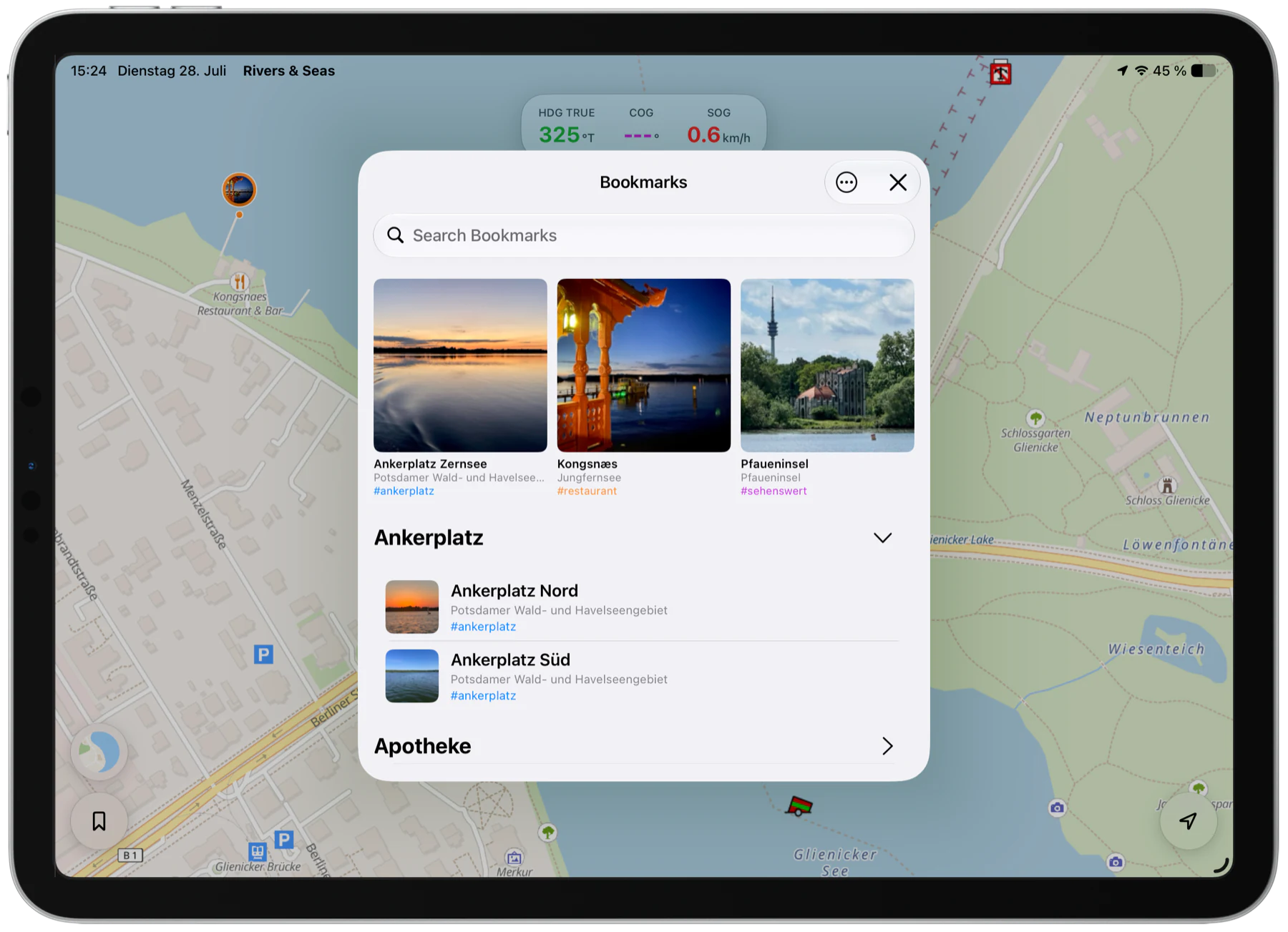
Bookmarks appear directly on the map and together in the Bookmarks menu. Tap a place in the menu and Rivers & Seas shows it on the map.
MOB function: save your current position immediately
If a person or something goes overboard, you want to find the spot again without searching through menus. Touch and hold the Bookmarks button on the map to save your current position immediately.
Rivers & Seas places a bookmark there straight away. It is just as useful for a lost line, an unexpected shallow spot, or any other position you want to return to quickly.
Every easy way to add a place
Use whichever way takes the least effort at that moment. Mark a place directly, bring something across from another app, or open a whole collection. Rivers & Seas turns it into the right bookmarks.
Directly in Rivers & Seas
Use this when you can see the place on the map or want to remember your current position.
- Touch and hold the place on the map.
- Touch and hold the Bookmarks button on the map to save your current position immediately.
- Open the Bookmarks list and choose “New Bookmark”.
- For several pictures: Bookmarks list → “New from Photos”.
Paste from the clipboard
Useful when you have already copied something: open the Bookmarks list and choose Paste.
- One or more photos
- A link from Apple Maps or Google Maps
- Coordinates or a Google Plus Code
- Text—the bookmark is created at your current position
Share with Rivers & Seas
When the place, photo, or note is already open in another app, tap Share there and choose Rivers & Seas.
- One or more photos
- A location from Apple Maps or Google Maps
- Coordinates or a Google Plus Code
- Text or pictures from another app
- A Rivers & Seas bookmark file or a GeoJSON file
With Siri, Shortcuts, or Apple Watch
Remember your position without first finding it on the map—especially convenient while underway.
- For example, say: “Hey Siri, mark my position in Rivers & Seas.”
- Run “Mark My Position” in the Shortcuts app—including on Apple Watch.
Import a whole collection
For many prepared places or a backup, there is no need to create each bookmark separately.
- Open the Bookmarks list and choose Import.
- Or open a Rivers & Seas Places file (.rnsplaces) or GeoJSON file directly with Rivers & Seas.
Create a place
The quickest way to save a place is directly where you see it on the map.
- Touch and hold the place on the map.
- Rivers & Seas creates a new bookmark there.
- Add a name and anything that will help you later.
Use the Rivers & Seas shortcut to add a bookmark at your current position—even with Siri. It is a convenient way to remember a place quickly while underway.
What you can save with a place
A name is enough to get started. A few more details make the bookmark much more useful later.
Name and notes
Record why the place matters: approach, depth, opening hours, berth, or a personal recommendation. You can tap web addresses and phone numbers directly in the notes.
Symbol
A suitable symbol shows at a glance whether the place is a harbor, restaurant, fuel station, or warning.
Photos
Add pictures from your photo library or the clipboard. The first photo initially becomes the marker image on the map. Use a photo’s context menu to choose a different marker image later.
Tags
Tags place a bookmark in one or more groups. They also determine its marker color and help you search, group, and filter.
Use tags to keep the map clear
Tags work like labeled folders—with one important advantage: one bookmark can belong to several groups at once. A harbor might carry #berth, #restaurant, and #supplies.
Simply type a tag beginning with # in the notes, such as #anchorage or #navigation. Tap the tag there to choose its color. The first tag supplies the bookmark’s marker color.
In the Bookmarks menu, group or filter by tags. While underway, show only #navigation and #warning; when looking for somewhere to stay, choose #anchorage; for a trip ashore, use #restaurant and #sightseeing.
When you select several filter tags, Rivers & Seas shows every bookmark that has at least one of them. A bookmark does not need to have all the selected tags.
You can rename or delete a tag across your collection. Deleting a tag does not delete the bookmarks themselves.
Search, organize, and edit several places
The Bookmarks menu includes a search. Pinned bookmarks remain at the top—useful for your next destination or a place you need repeatedly during a trip.
Group the list by tags, sort it in different ways, or use your own order. With custom order selected, touch and hold a bookmark, then drag it to the position you want.
Choose “Select” to work with several bookmarks at once. You can assign a tag to all of them, lock or unlock them, and delete them.
Search, sorting, and tag filters help you prepare exactly the right group first—for example, every old bookmark tagged #holiday2024 that you then want to delete together.
Find and move bookmarks on the map—and protect important places from changes
From farther away, a bookmark appears as a colored dot. Zoom in and Rivers & Seas shows its marker photo or selected symbol. The color comes from the bookmark’s first tag.
To move an unlocked bookmark, touch and hold its marker on the map, drag it to the new place, then release it.
Lock an important bookmark so you cannot accidentally move, edit, or delete it. You can still add, replace, or remove photos at any time.
Bookmarks on Apple Watch
Bookmarks appear in the Apple Watch compass when they are within the displayed range. You can see their direction and distance without taking out your iPhone.
Turn the Digital Crown to change the distance and scale. A larger scale includes places farther away; a smaller one concentrates on your immediate surroundings.