
Do not rebuild it: import an existing Track
A GPX file contains a saved course. A friend may have recorded it, a charter company may have prepared it, or you may have exported it from another app. Rivers & Seas puts that course on your map as a Track without making you redraw every point.
Tracks work on water and on land. On waterways, Rivers & Seas also relates the course to the nautical information along the journey.
Open the file and review it before importing
Open the file in Files and share it with Rivers & Seas. On iPad, you can also drag and drop it into the app. A map preview first shows what was recognised; when a file contains several items, choose which ones to keep.
- Open the GPX, GeoJSON, or RNSP file on your iPhone or iPad.
- Choose Rivers & Seas from the Share menu, or drag the file into the open app.
- Review the course and contents in the preview.
- Import the selected Tracks and places.
Know roughly how long the journey will take
Rivers & Seas shows the Track length and calculates pure cruising time from your cruising speed. Assumed lock time appears separately—for example, “2 hr 37 min + 1 hr 20 min”. You can quickly tell whether a circuit fits into the afternoon or is better treated as a full-day trip.
Each lock uses its stored duration, or 30 minutes when none is available. The time is included for every place that follows, keeping bridge clearances and departure recommendations aligned with the expected arrival.
If the app has learned a typical cruising speed, or one is stored in your profile, it uses that value. You can adjust it at any time to suit your boat and normal cruising style.
See more than the line: understand the journey
For a boating Track, what lies along the course is what matters. Rivers & Seas orders bridges, locks, and available navigation notices along the Track in the direction of travel. Photos, distances, expected arrival, clearances, and contact details turn the line into an understandable journey.
Before setting off, you can already see where a low bridge, a lock, or a known restriction deserves extra attention.
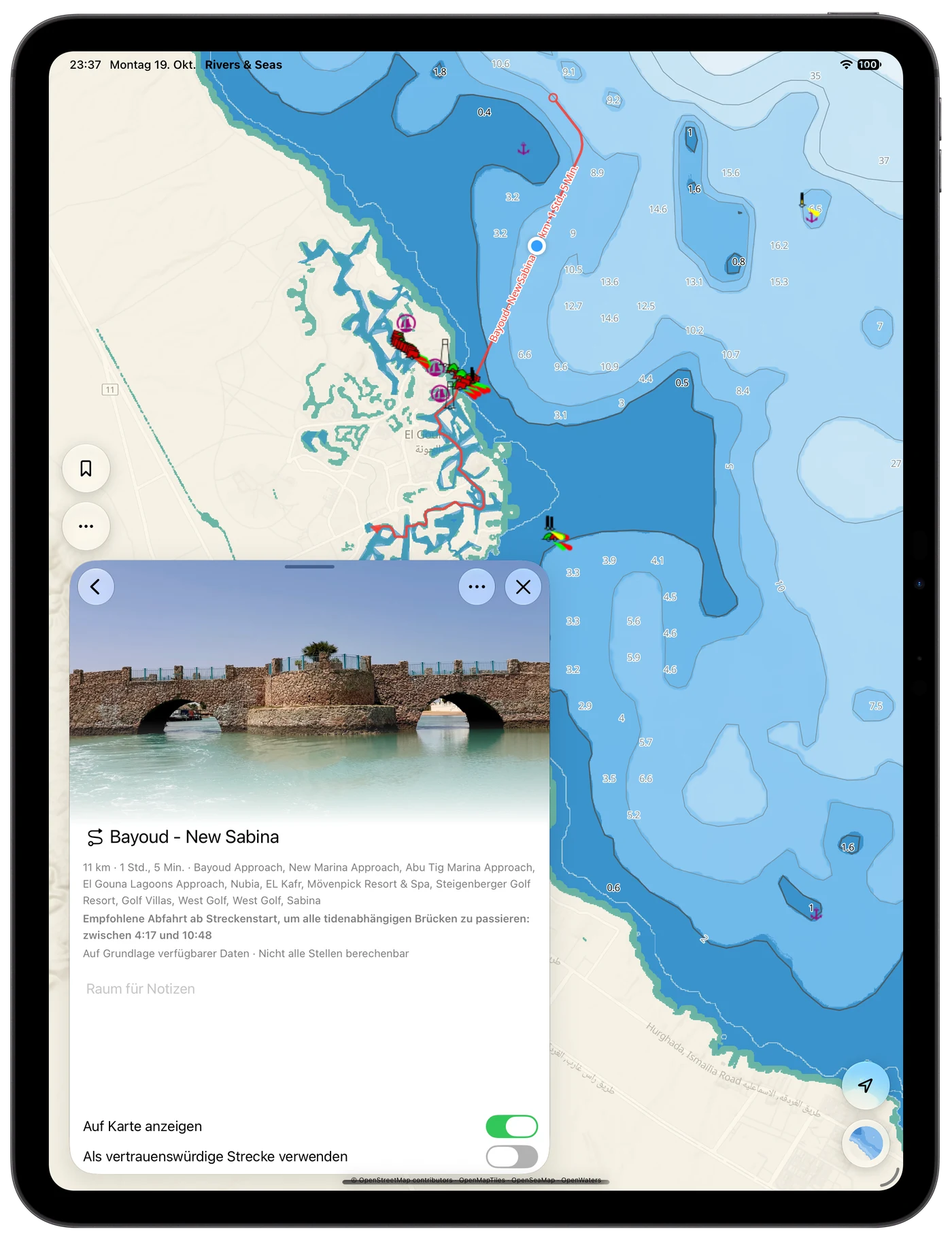
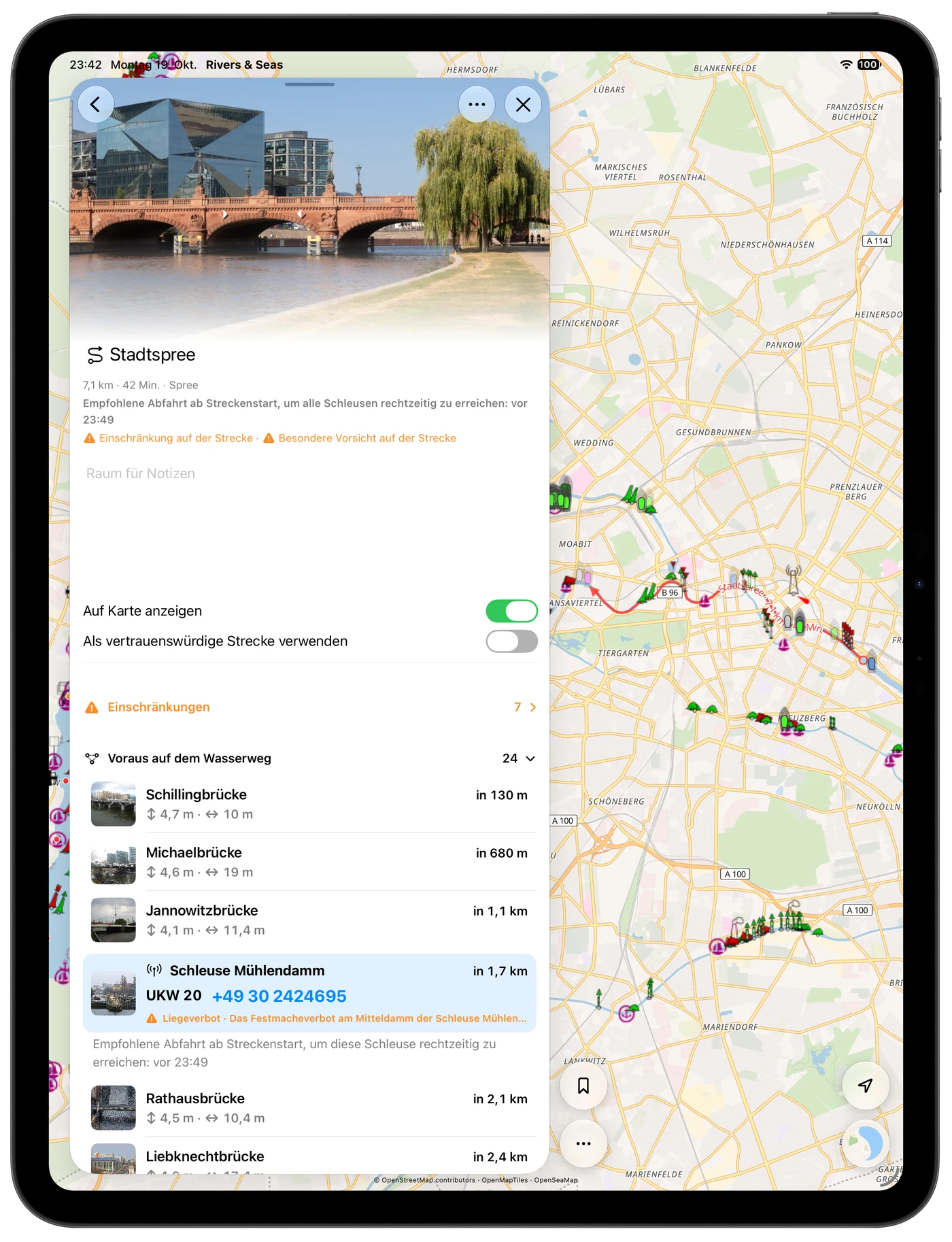
Bridges
Photos and available clearances help you assess the passage early.
Locks
Distance, arrival, lock duration, operating information, and contacts appear together in the context of the journey.
Notices
Available closures and restrictions appear where they affect your Track.
Find favourite Tracks again quickly
Give the Track a clear name, add a photo and notes, and organise it with coloured tags. This becomes particularly useful as holiday trips, charter suggestions, and your own recordings accumulate.
To change the line colour, open the Track, tap the circle with three dots at the upper right, and choose Tags. Add a tag, choose its colour, and confirm with the tick. If there are several tags, the first tag in the notes supplies the Track colour.
A Track can remain saved without always being visible on the map. Map visibility is separate from pinning.
Reverse the direction for the return journey
For the same journey home, reverse the start, finish, and order with one command. Rivers & Seas then considers bridges, locks, and notices in the new direction of travel.
Deleted by mistake? Recover it for 30 days
Deleted Tracks first remain in Recently Deleted. Restore them there or remove them permanently. They are deleted automatically after 30 days.
No Track? Just set off
An imported Track is useful for a recommended course, a day trip, or sharing with friends. It is not a prerequisite: while cruising, Rivers & Seas still recognises your actual waterway automatically and shows what matters ahead.