
Open weather at your current position
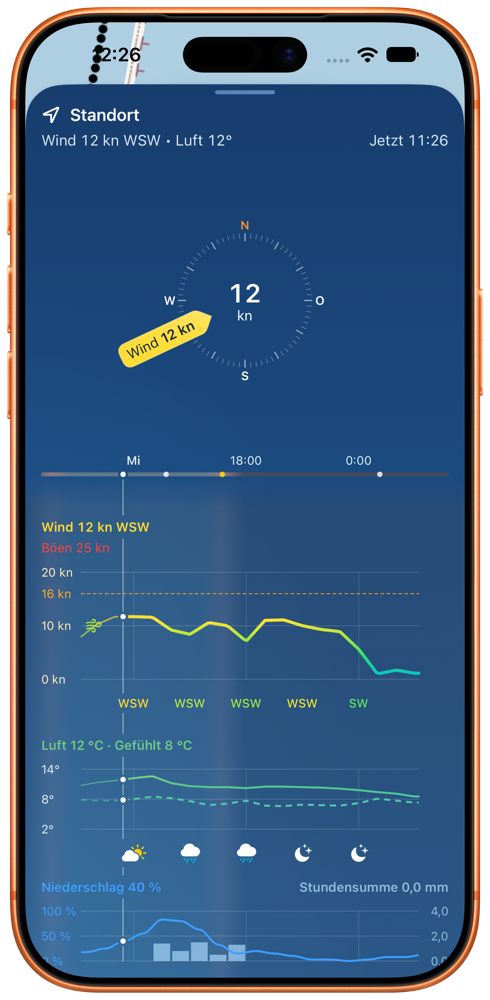
Open the weather view on the map for your current position. The summary shows the conditions now, followed by one hourly forecast for wind, water and weather.
Turn an anchorage into your weather place
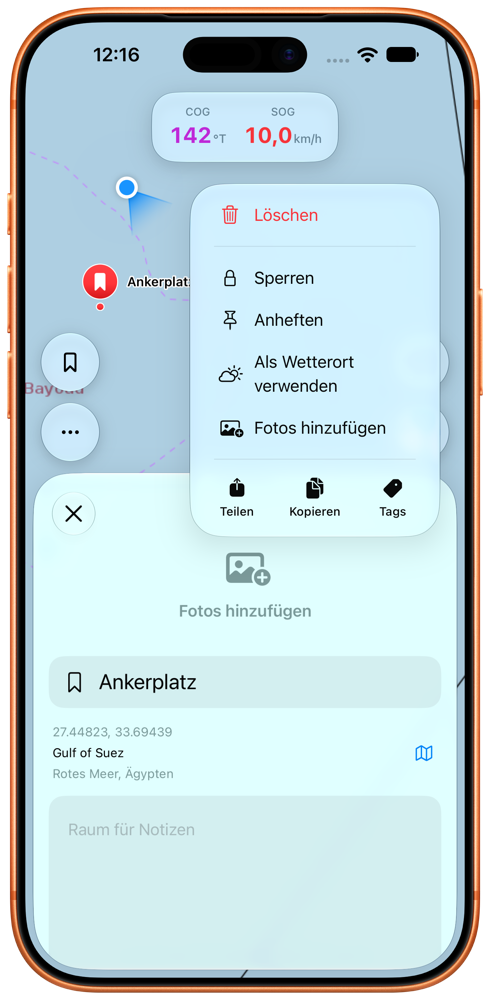
Save the harbour, lake or anchorage as a bookmark. Open it, tap the circle with three dots and choose “Use as weather place”.
The app and widgets now show this place even while you are still elsewhere. When you change the weather place, the displays follow automatically. Remove the fixed weather place and they return to your current position.
Move through time and zoom into the important hours
Drag the time marker left or right to select a moment in the forecast of up to 72 hours. Every curve and value then refers to that same moment.
Spread two fingers to enlarge a shorter period. Pinch them together to return to more of the longer forecast trend.
Read wind, gusts and direction together
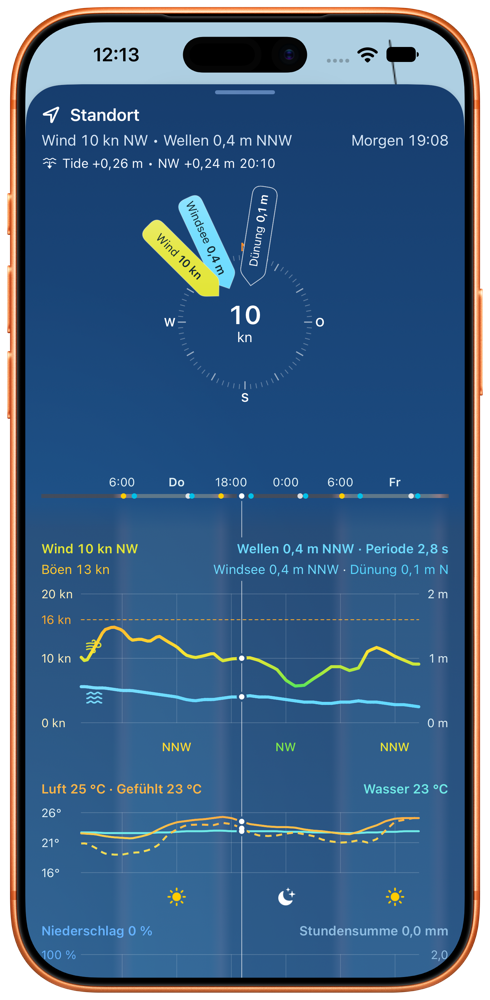
The solid wind curve shows the expected sustained wind, while the gust value shows stronger peaks. Coloured direction labels below the curve show where the wind comes from.
Compare the selected moment with your cruising area and boat. The same wind can feel sheltered on one side and much more demanding on an exposed side.
Tell total wave, wind sea and swell apart
Total wave describes the resulting sea state from wind sea and swell. Wind sea is generated by the local wind and is often shorter, steeper and more unsettled.
Swell comes from a distant or earlier wind system. Direction and wave period help you judge whether it can enter a bay or reach a beach. That is why two 1.5-metre forecasts can feel very different.
Check rain and temperatures for the same moment
Below the wind and wave chart, you can see precipitation probability and amount together with air temperature and feels-like temperature. Water temperature appears where it is available.
You are comparing wind, water and weather for one selected moment rather than readings from different hours.
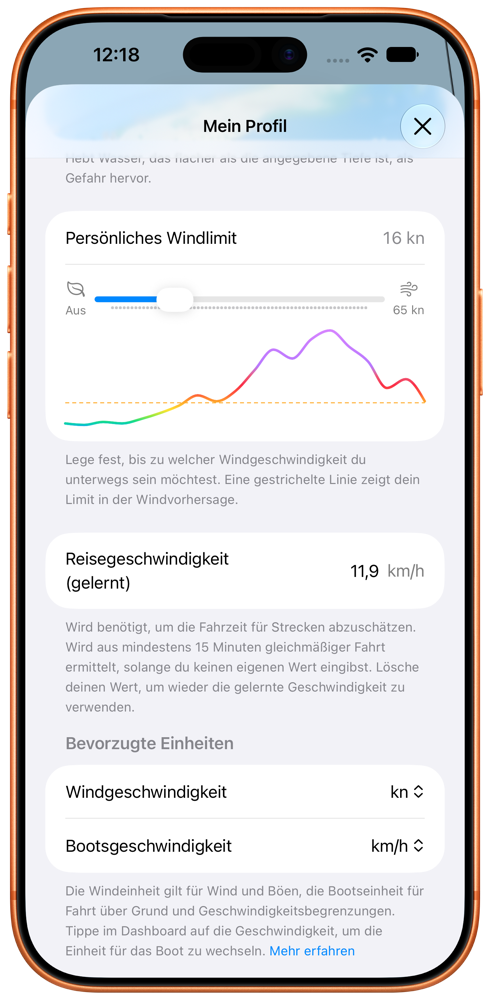
Set your personal wind limit
Open your profile and use “Personal wind limit” to choose the wind speed up to which you want to be underway. A dashed line in the forecast shows when wind is above it.
Allow notifications if you want Rivers & Seas to warn you about an expected exceedance. The limit is personal guidance, not a general declaration that a trip is safe.
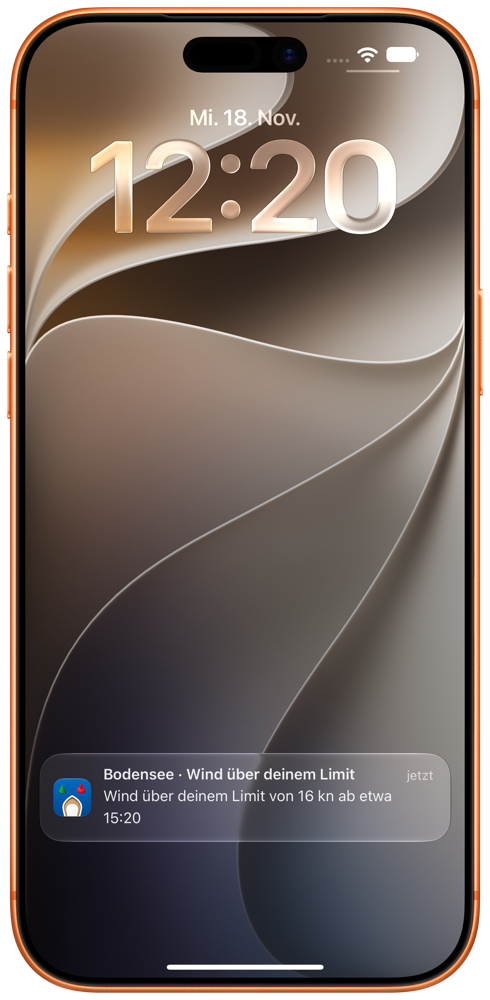
Know before wind rises above your limit
With notifications allowed, Rivers & Seas can tell you that wind at your weather place is expected to exceed your limit. The notification names the place, limit and approximate start.
A weather alert supports your own assessment of the forecast, cruising area and boat. It does not replace official warnings.
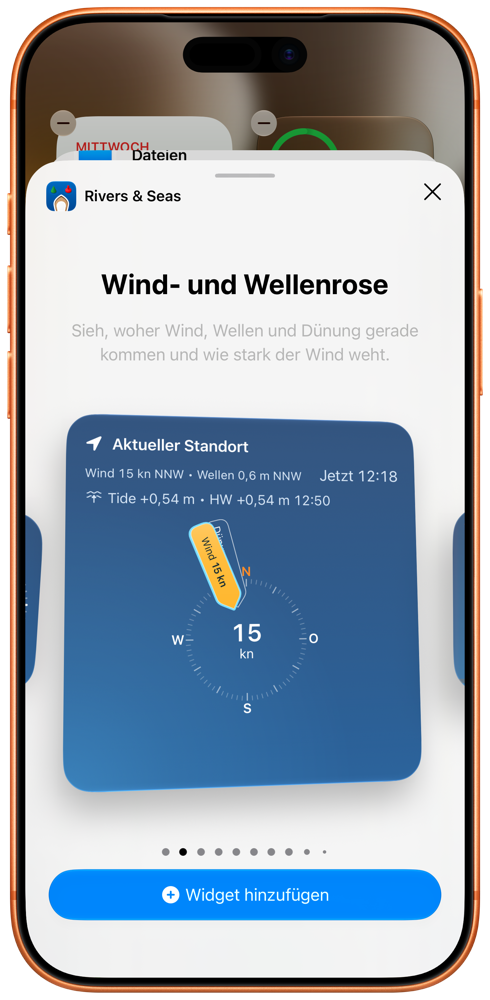
Add a Rivers & Seas widget
Touch and hold an empty area of the Home Screen until the apps jiggle. Tap Edit, then Add Widget. Search for Rivers & Seas, choose a view and tap Add Widget.
Depending on size, widgets show a compact conditions summary, a wind and wave rose, the wind and wave trend, or tide and water level. On the Lock Screen, use Customise and place Rivers & Seas in an available widget area.
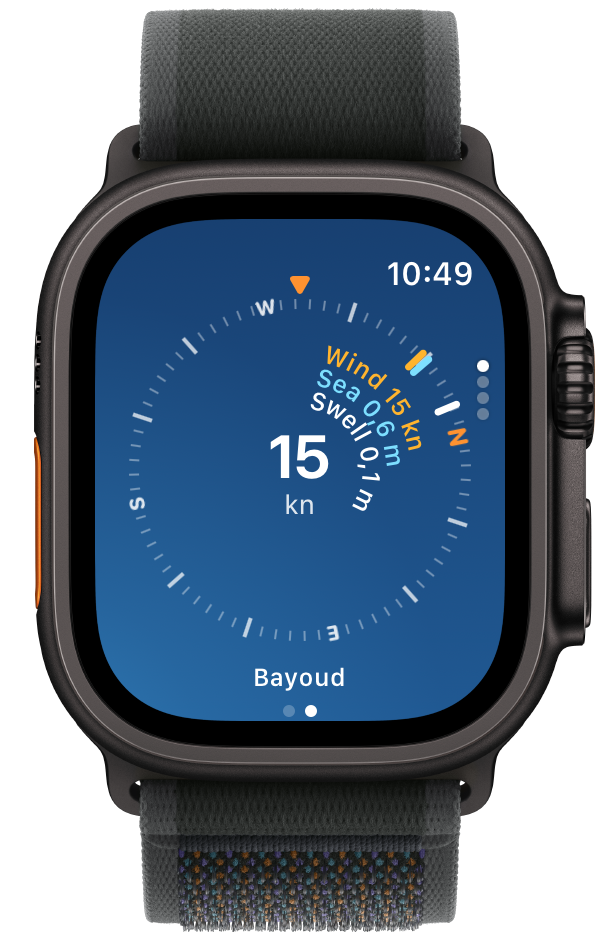
Keep the wind trend in view at your wrist
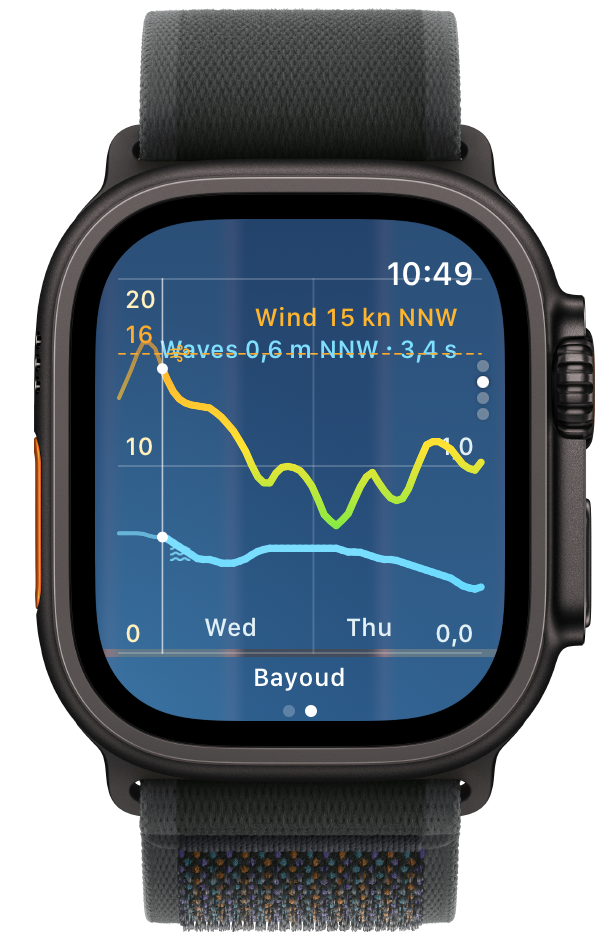
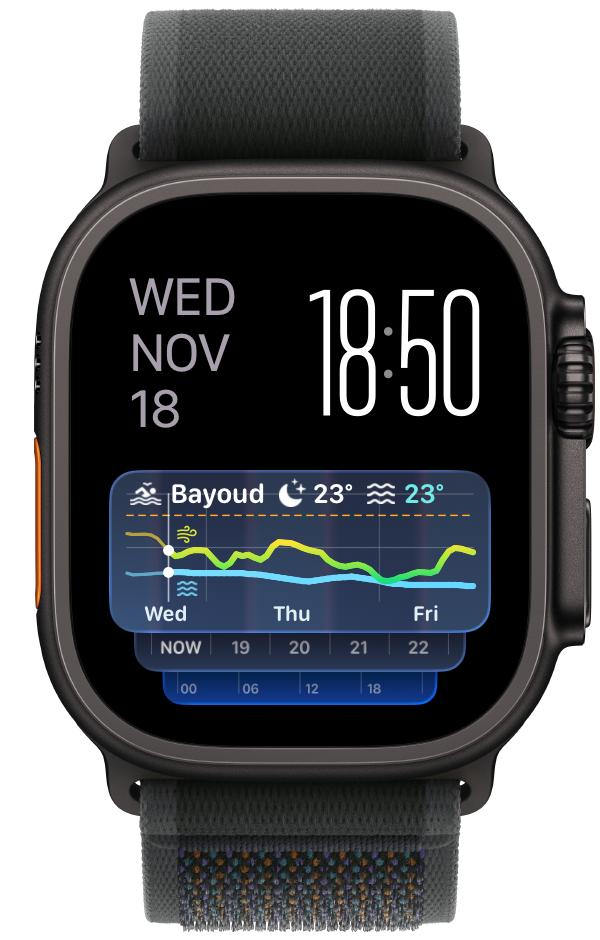
Open Rivers & Seas on Apple Watch and switch between the wind rose and forecast trend. Both views use your selected weather place, so you can check wind, waves, direction and the next few hours without taking out your iPhone.
For an even quicker glance, open the Smart Stack on Apple Watch, touch and hold it, then add Rivers & Seas with the plus button. If the app is missing from the Watch, install it from Available Apps in the Watch app on iPhone.
Use the charging iPhone as a weather display
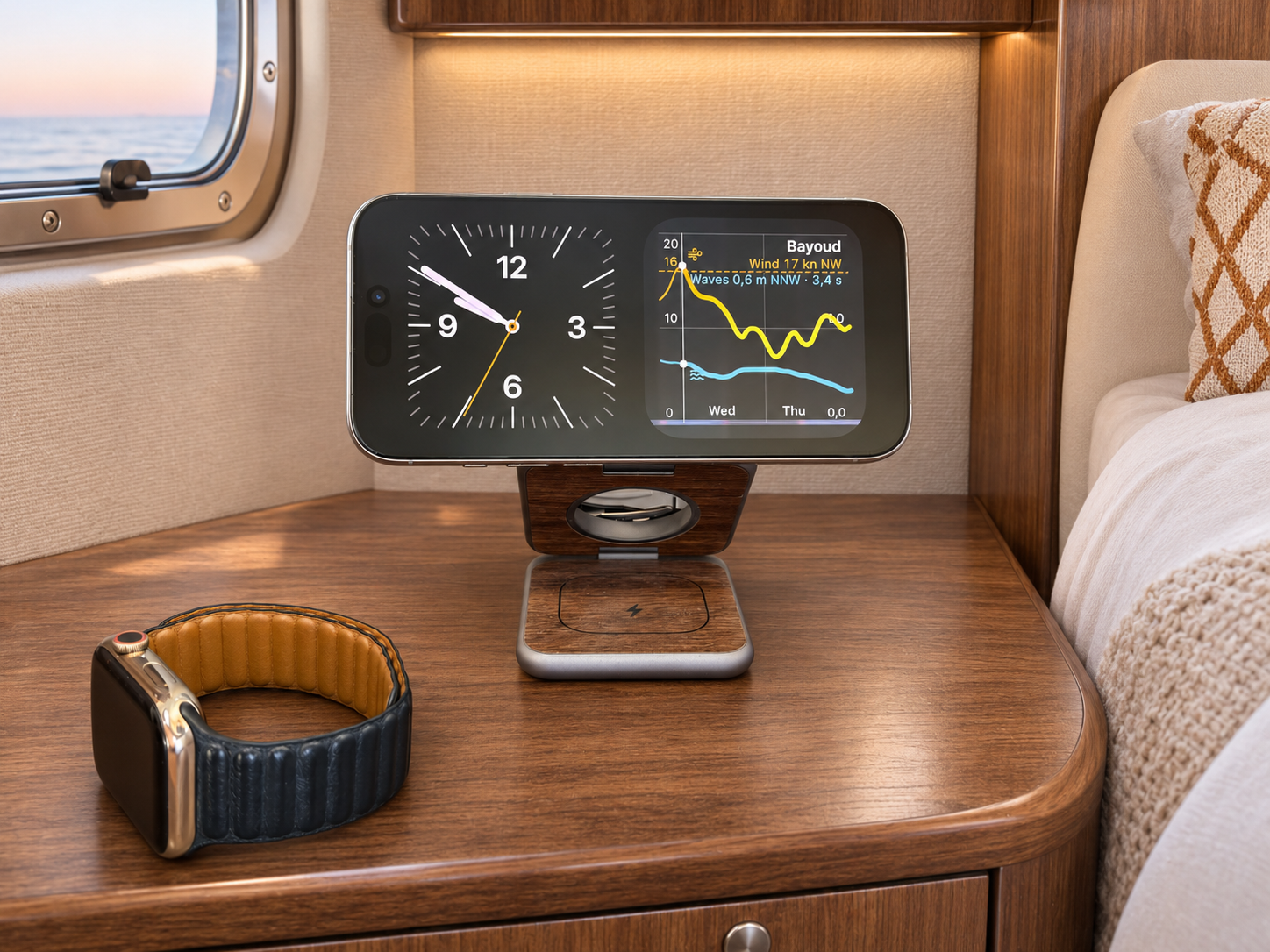
StandBy is part of iPhone. While charging on its side, it can show a large clock, photos or widgets. Rivers & Seas does not need a separate mode.
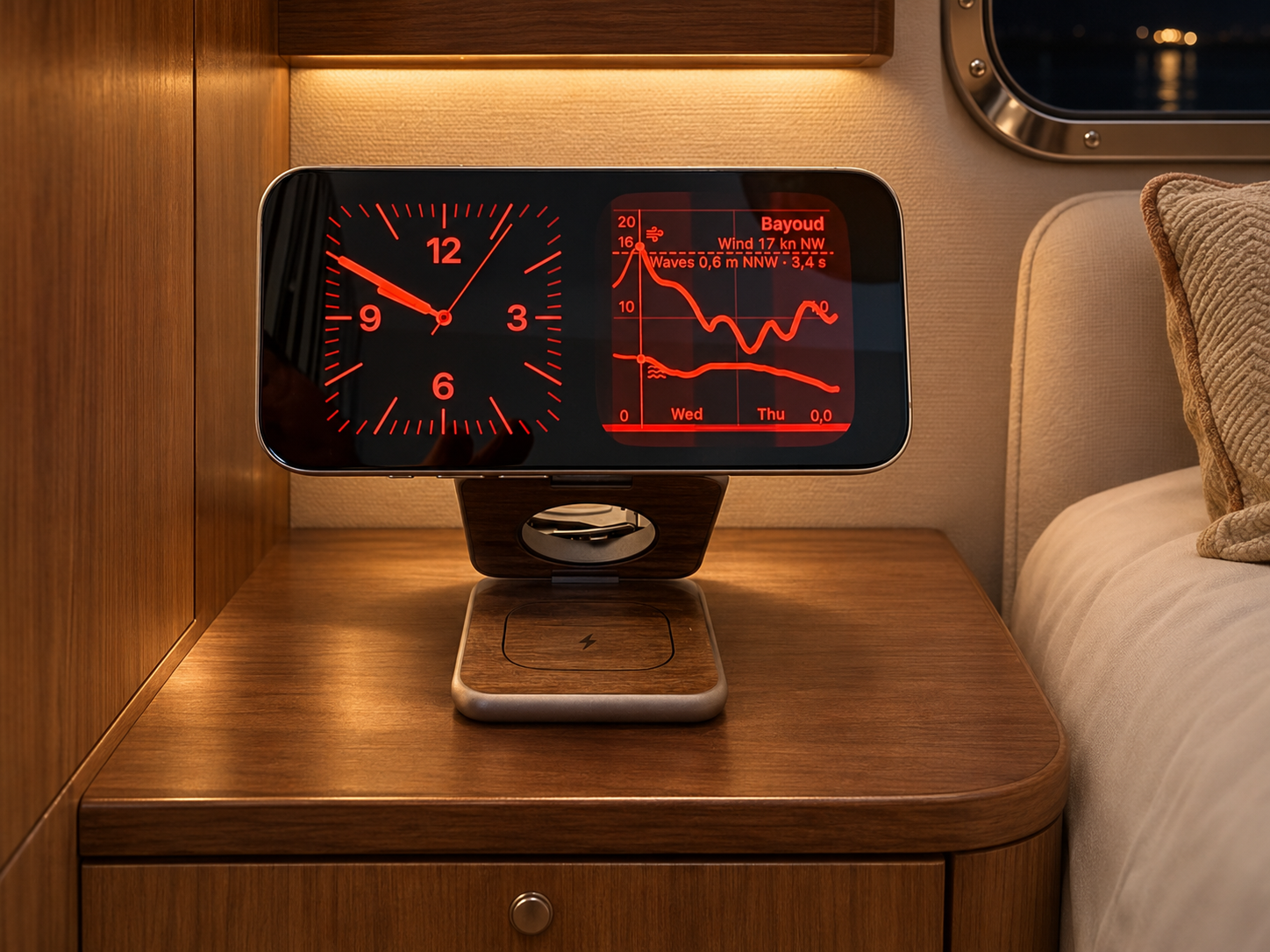
Open Settings › StandBy and turn it on. Connect the locked iPhone to a charger, place it stationary on its side and press the side button if needed. Move to the widget view, touch and hold a side, unlock iPhone and use the plus button to add Rivers & Seas.
On iPhones with an Always-On display, StandBy can remain visible. On other models, the screen may turn off and wake again with a tap, a gentle movement or Siri. In low light, Apple’s Night Mode can dim the display and give it a red tint.
The view stays deliberately simpler on lakes
Not every body of water has reliable wave or tide data. Rivers & Seas then shows wind, gusts, air temperature, feels-like temperature and precipitation. Water level and water temperature appear where those data are available.
This is not an error. You see only data that is genuinely available for the place.